


Table of Contents
Modern retail and hospitality businesses expect speed, reliability, and simplicity at the checkout counter. One small delay in printing receipts can disrupt customer experience and slow down operations. To address this, Odoo Point of Sale supports direct receipt printer integration without requiring an IoT Box, provided the printer is compatible. This approach reduces hardware dependency, simplifies setup, and enables automatic receipt printing as soon as a sale is validated.
This blog explains, in clear and practical terms, how Odoo connects directly to receipt printers, what businesses need to consider before setup, and why this method is increasingly preferred by retailers.
Understanding Printer Compatibility in Odoo POS
Before connecting any printer, compatibility is the most important factor. Printers communicate with software using specific protocols, similar to how people need a common language to communicate effectively. Odoo POS supports ePOS (Epson POS) communication protocol, which allows printers to receive print jobs directly over a network.
This means the printer must be connected via Ethernet or Wi-Fi. Printers that only support USB connectivity cannot communicate directly with Odoo and will require an IoT Box instead.
Odoo officially recommends fully tested models such as the Epson TM-M30 series, ensuring stable performance and seamless integration.
Direct Network Printing vs IoT Box Printing
| Aspect | Direct ePOS Printing | IoT Box Printing |
| Additional hardware | Not required | Required |
| Printer connection | Network (Ethernet/Wi-Fi) | USB |
| Setup complexity | Medium | Low |
| SSL certificate handling | Manual (if required) | Automatic |
| Ideal for | Fixed POS counters | Tablets, USB printers |
For businesses with network-ready printers, direct ePOS printing offers a clean and cost-effective setup.
How Direct Printer Integration Works in Odoo
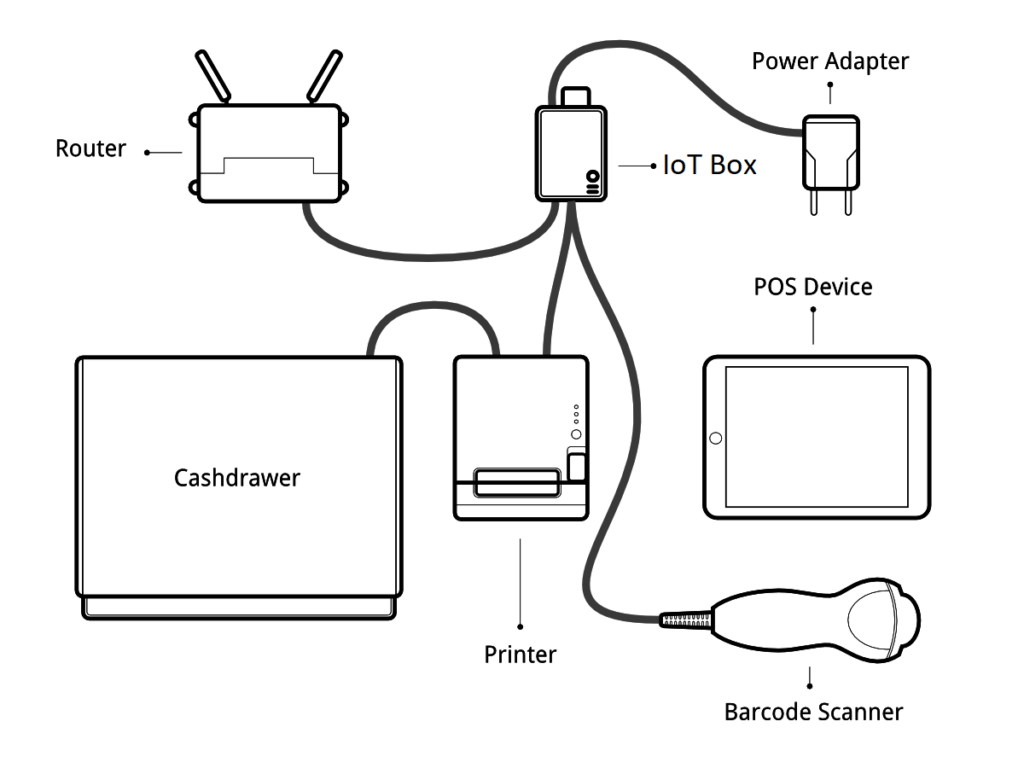
In a direct setup, Odoo POS communicates with the printer using its IP address. When a sale is validated, Odoo sends the receipt data over the network, and the printer immediately prints it—without any intermediary device.
To ensure stable communication, the printer must have a static IP address assigned by the router. If the IP changes, Odoo will no longer be able to locate the printer.
Configuring the Printer in Odoo POS
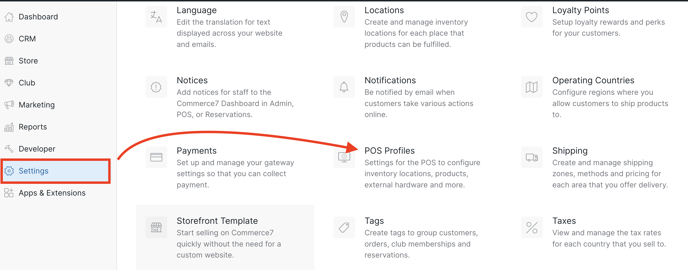
Once the printer is powered on and connected to the network, it prints a small ticket showing its IP address. This IP is then entered into the POS configuration settings under ePOS printer configuration.
From this point onward, Odoo POS knows exactly where to send print requests. The result is automatic receipt printing during checkout, with no manual steps required.
Secure Communication with Self-Signed Certificates
Some network printers require secure HTTPS communication. In such cases, a self-signed SSL certificate must be generated directly from the printer and trusted by the device running Odoo POS.
The process involves:
- Accessing the printer’s IP address in a browser
- Generating a certificate with the printer’s IP as the common name
- Exporting the certificate in Base-64 format
- Importing it into the browser’s trusted certificate store
Once trusted, Odoo can communicate securely with the printer without warnings or interruptions. This step is not required when using an IoT Box, as certificates are handled automatically.
Real-World Use Case: Retail Checkout Simplified
A mid-sized retail store using Odoo POS previously relied on USB printers and manual receipt confirmation.
Before direct ePOS printing
- Extra hardware maintenance
- Occasional connection failures
- Slower checkout during peak hours
After switching to direct network printers
- Automatic receipt printing on validation
- Fewer hardware components
- Faster, smoother checkout experience
Within weeks, the store reported reduced cashier errors and improved customer satisfaction during high-traffic periods.
Troubleshooting Common Printer Issues
| Issue | Likely Cause | Quick Check |
| No IP printed | Network not connected | Check Ethernet/Wi-Fi |
| Blank receipt | Paper roll inverted | Flip paper |
| Printer not found | IP changed | Assign static IP |
| SSL error | Certificate not trusted | Import certificate |
| No response | Network or firewall | Test IP in browser |
A simple test is to open the printer’s IP address in a browser. If it is unreachable, the issue lies in the network, not Odoo.
Why Businesses Prefer Direct Printer Integration
Direct ePOS printer integration aligns with Odoo’s philosophy of simplifying operations while reducing dependencies. By removing the need for additional devices, businesses gain:
- Fewer failure points
- Lower hardware costs
- Faster setup for new POS counters
- Cleaner, more reliable checkout workflows
For fixed POS environments, this method delivers both efficiency and scalability.
Final Thoughts
Receipt printing may seem like a small part of point-of-sale operations, but reliability at this stage directly affects customer experience. Odoo’s ability to connect directly to compatible network printers—without an IoT Box—offers a modern, streamlined solution for retailers and hospitality businesses.
With the right printer, a static IP, and secure communication in place, Odoo POS delivers instant, automatic, and dependable receipt printing, helping businesses focus on serving customers rather than managing hardware issues.
1. Can Odoo POS work without an IoT box?
Yes. Odoo POS can connect directly to compatible network receipt printers using the ePOS protocol, without requiring an IoT box.
2. Which printers are compatible with Odoo POS without IoT box?
Odoo supports network-based ePOS printers such as the Epson TM-M30 series that communicate over Ethernet or Wi-Fi.
3. Why does the printer need a static IP address?
Odoo POS connects to the printer using its IP address. If the IP changes, Odoo will not be able to find the printer.






Post Comment